What you need to know about the new BT Pay app homepage?
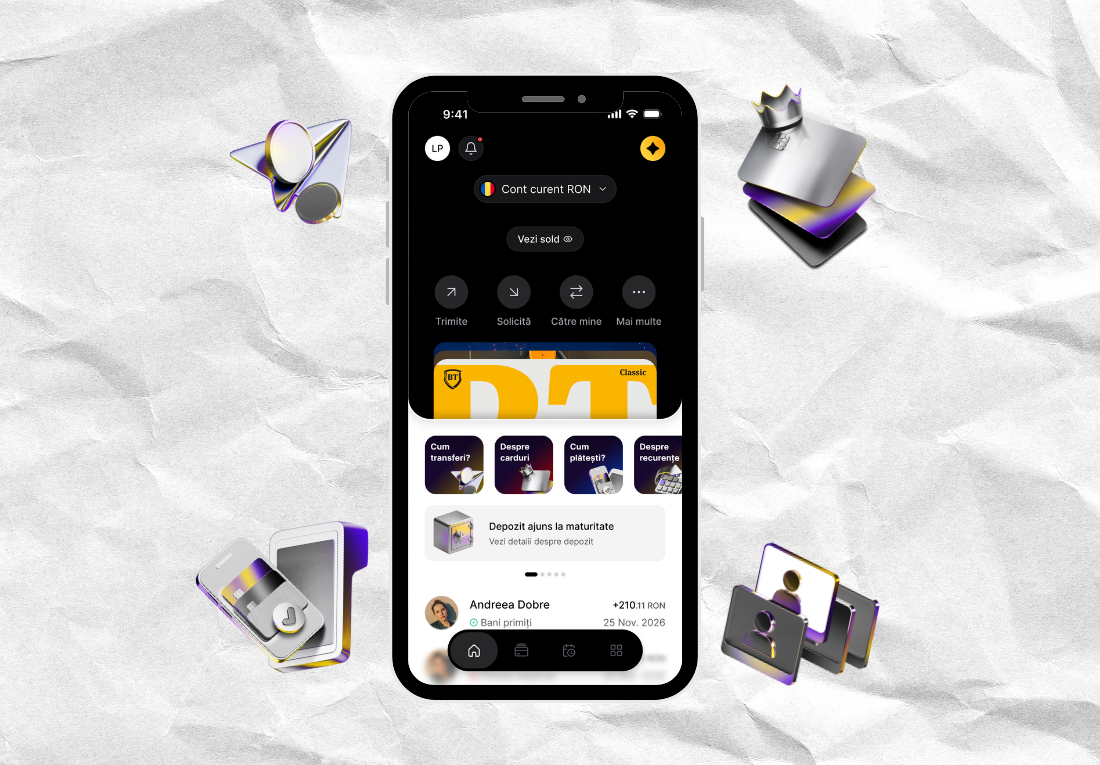
Here BT Pay begins: your accounts, in plain sight
When you open BT Pay, the first thing you want to know is: how your money stands, what it was spent on, and what you can do with it next. That’s why the app’s main page is built around your accounts and brings you the information and options you use most often.
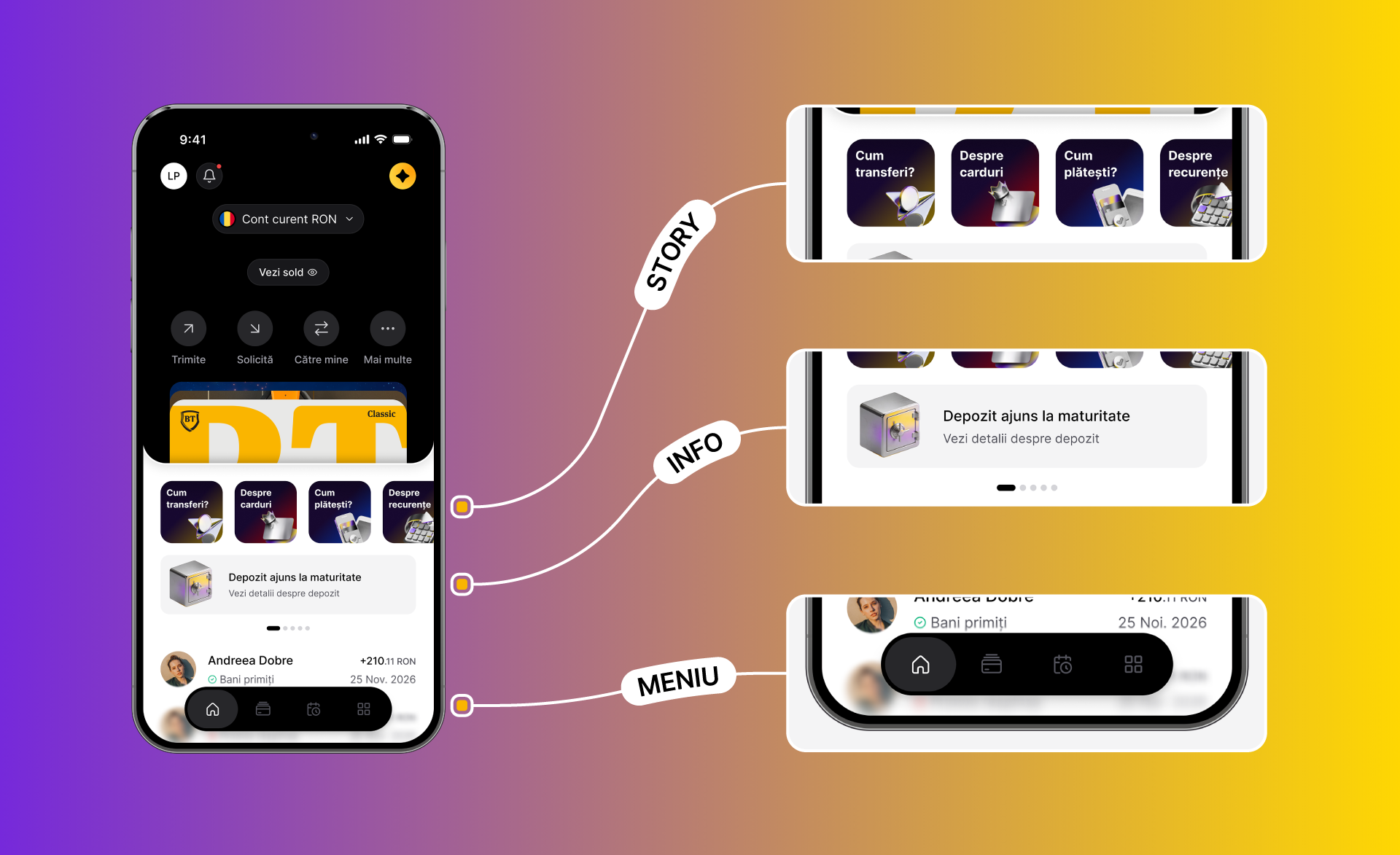
You can view your accounts and cards, check your balance, send or request money, exchange currency, or quickly access your transaction history. From here, you can also see news and offers relevant to you.
Your homepage revolves around your accounts
So you’re always in control when it comes to them 😊
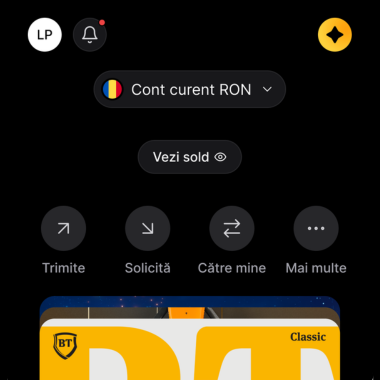
- From account selector You have quick access to all your accounts. Choose the one you’re interested in and, by default, the card linked to it. Plus, if you want to send someone the IBAN for each account, you can copy it instantly from the same place.
- From the button Sold see how your money stands.
- The first 2 buttons (Send and Request) helps you send or request money from friends: using their phone number, IBAN, name saved in your contacts, or QR code (RoPay). Simple, intuitive.
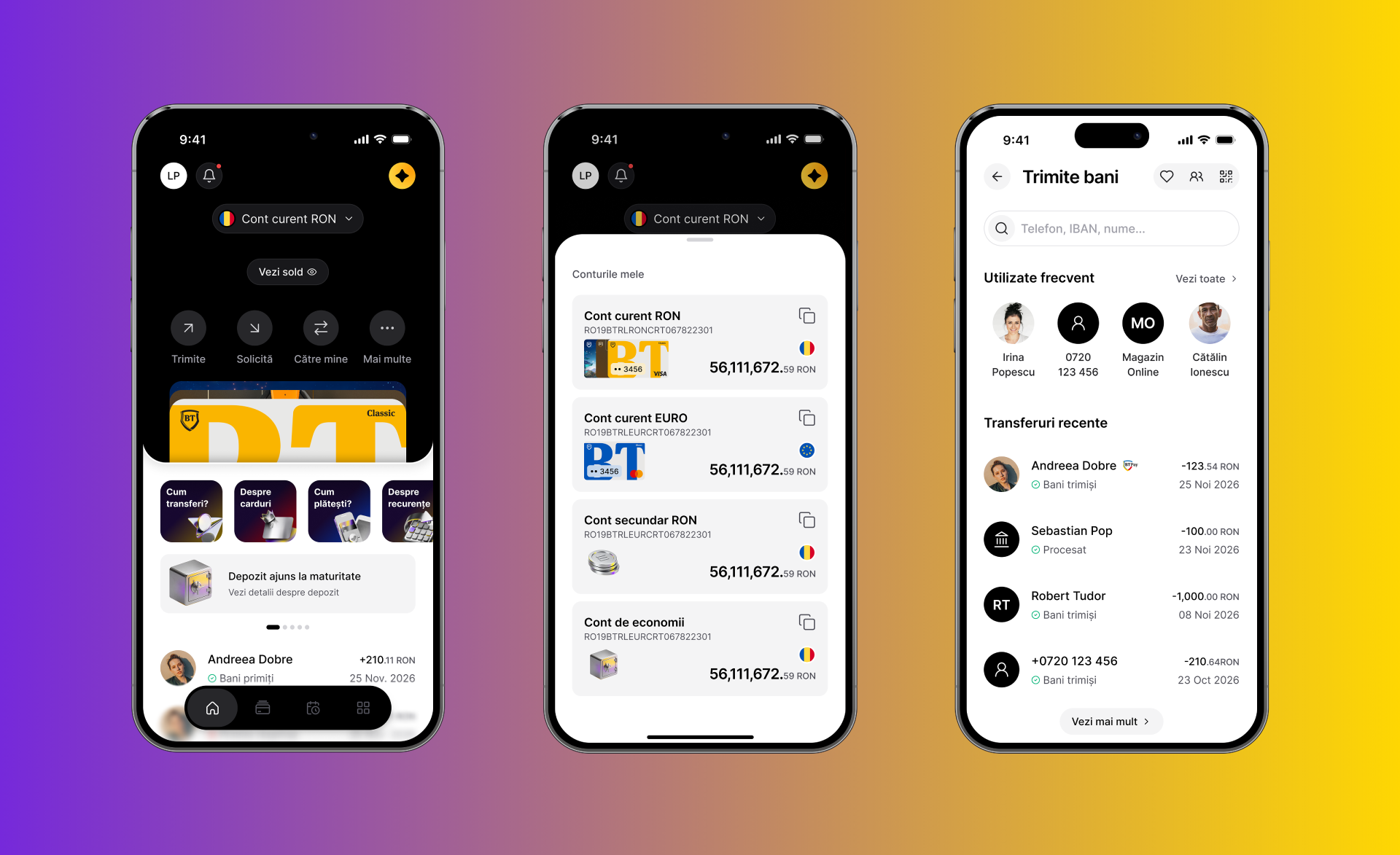
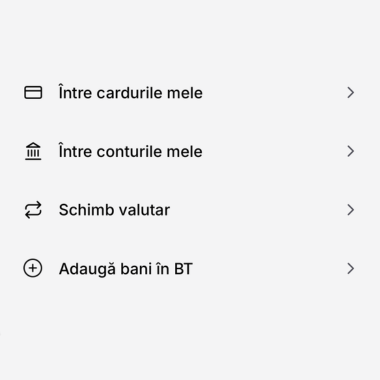
From the option To me:
- Send money between your cards, those you have enrolled in the app
- Between your accounts
- Do currency exchange, in 14 currencies
- Do top up (Add money to BT) using a card from another bank or an account
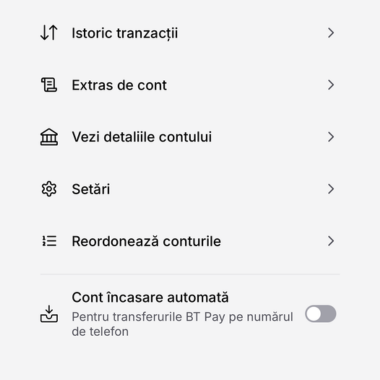
From More:
- See transaction history on your account – anyway, you can see the transaction history on the home screen too, with a simple scroll.
- Generate account statement for what period do you want
- See account details (beneficiary, account type, BIC/Swift)
- Access settings where you can change the account name
- Reorder accounts, depending on your needs.
How do you stay up to date with everything that’s happening?
From the area of Story (story) & Info 😊 Stories bring you information about products and campaigns, while the info section is strictly for essential information for you, such as policy expirations, how to stay safe from fraud, etc.
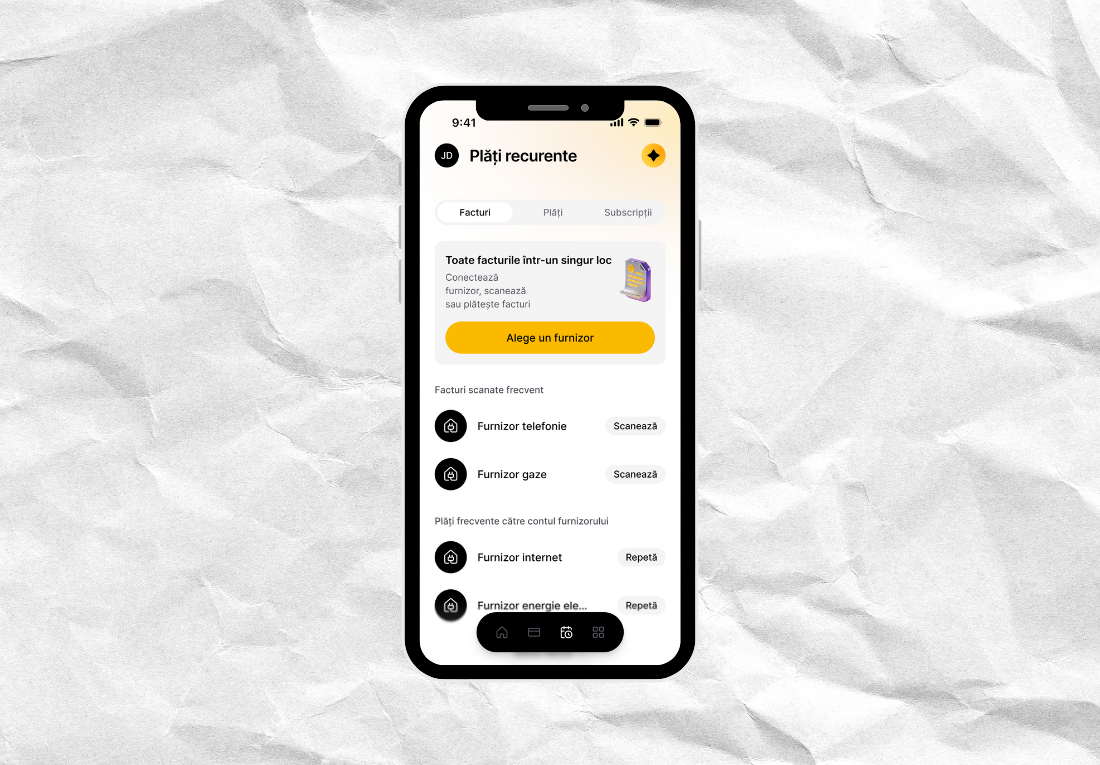
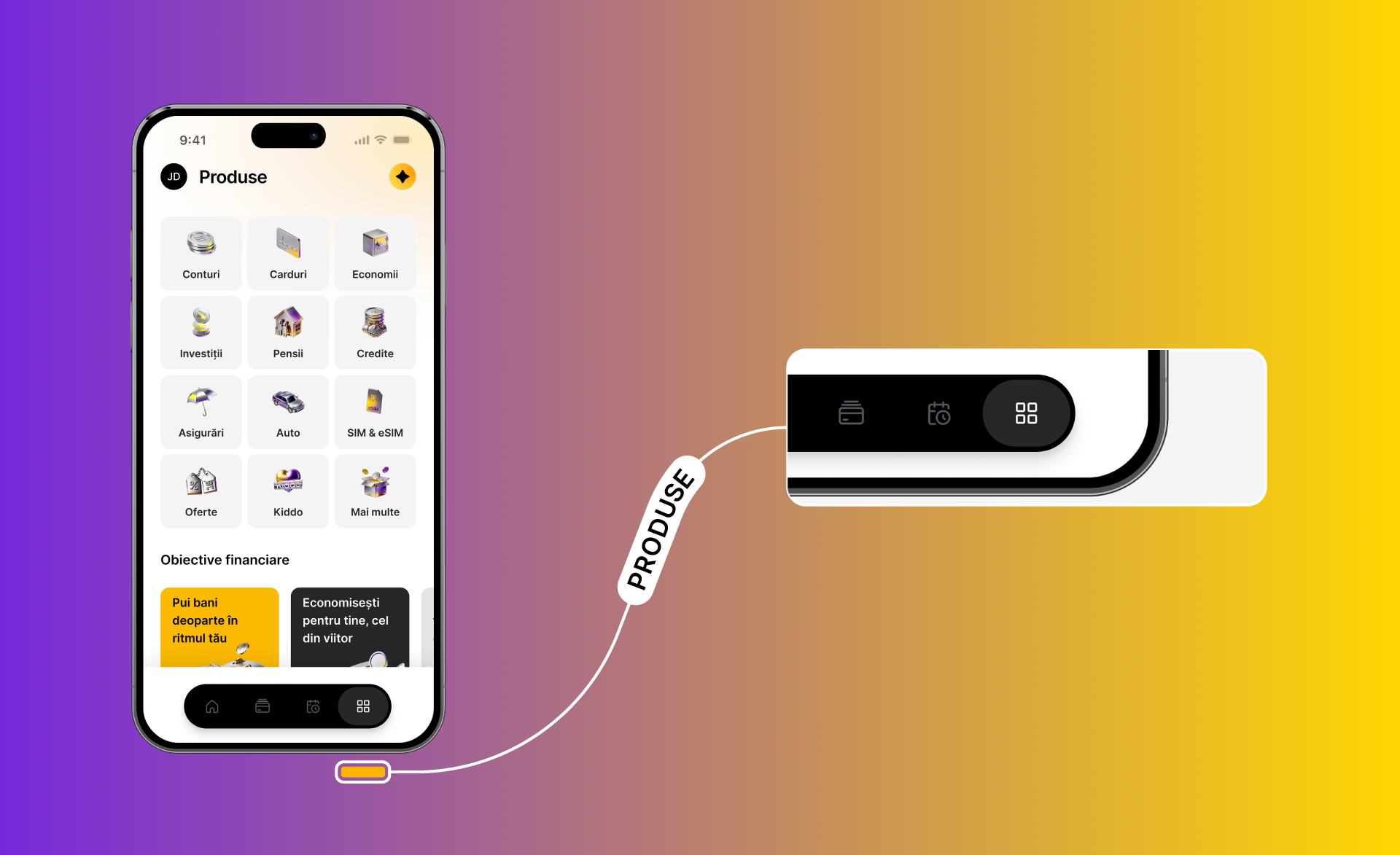
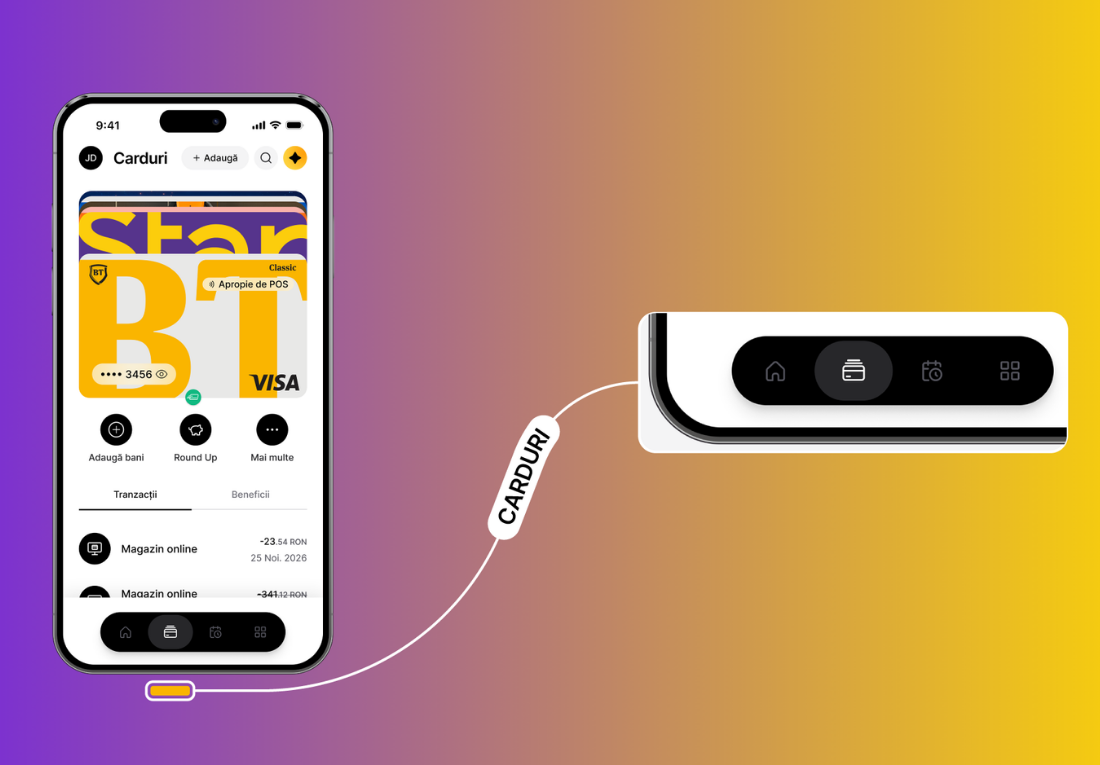
At the bottom of the app, you will find 4 buttons – serving to navigation bar. You have Home page (homescreen), Cards, Recurrences and Products. From these sections, you can get anywhere you need: payments, expense tracking, insurance, investments – in other words, everything you care about.